Spectrum mobile catalog app
Android
Firebase App Distribution is Google's platform for delivering pre-release Android builds to a curated set of internal users. It's how Spectrum ships its Android catalog app to the team. Every merge to main automatically publishes a new build, so you always have the latest version a few minutes after a change lands.
To start receiving builds you'll complete a one-time setup: install the Firebase App Tester app on your phone and sign in with the Google account that's been added to the Spectrum tester list. After that you don't need to come back to this guide. For every new build you'll get an email notification when it's ready, an in-app update prompt the next time you open the catalog, and the detailed release notes for that build right inside the app.
Install on a personal Android profile. Adobe hasn’t yet whitelisted the Firebase App Tester in its managed work profile, so the install will fail on work-profile devices. Install the App Tester App in your personal profile instead.
The sections below walk through that one-time setup, end to end.
Step 1: Prerequisites
- Request an Adobe Google account if you don’t already have one. Your cost center manager must approve the request. The account must be approved and provisioned before you can proceed with the remaining steps.
- If you own a corporate Android device, enroll your device in the Device Management Service.
- If you own a personal device with BYOD enabled, install the Okta Verify mobile app from the Play Store in your personal profile. Then configure your Adobe account in the app by scanning the QR code from the Okta Verify Desktop App using Add Account to Another Device. This is required to sign in to your Adobe Gmail account and download the distributed apps.
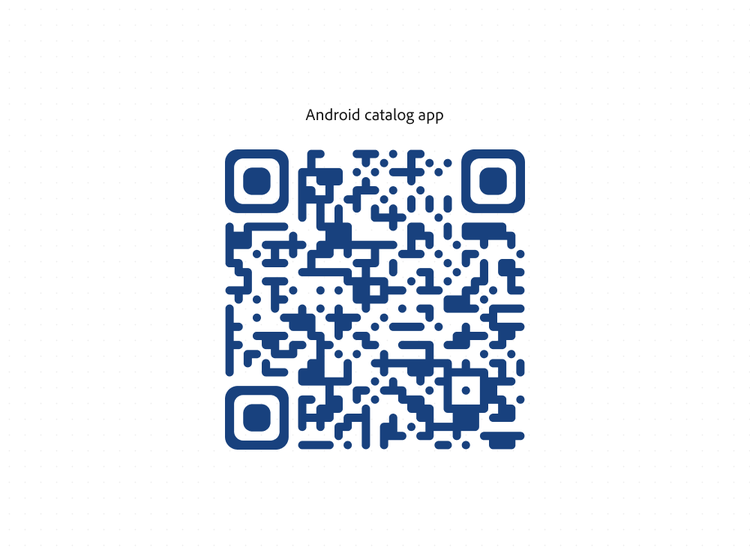
Step 2: Scan the QR code
Scan the QR code, or open https://appdistribution.firebase.google.com/i/f1debcce1f01d0e4 on your phone to get started.
Step 3: Enter your Adobe email address
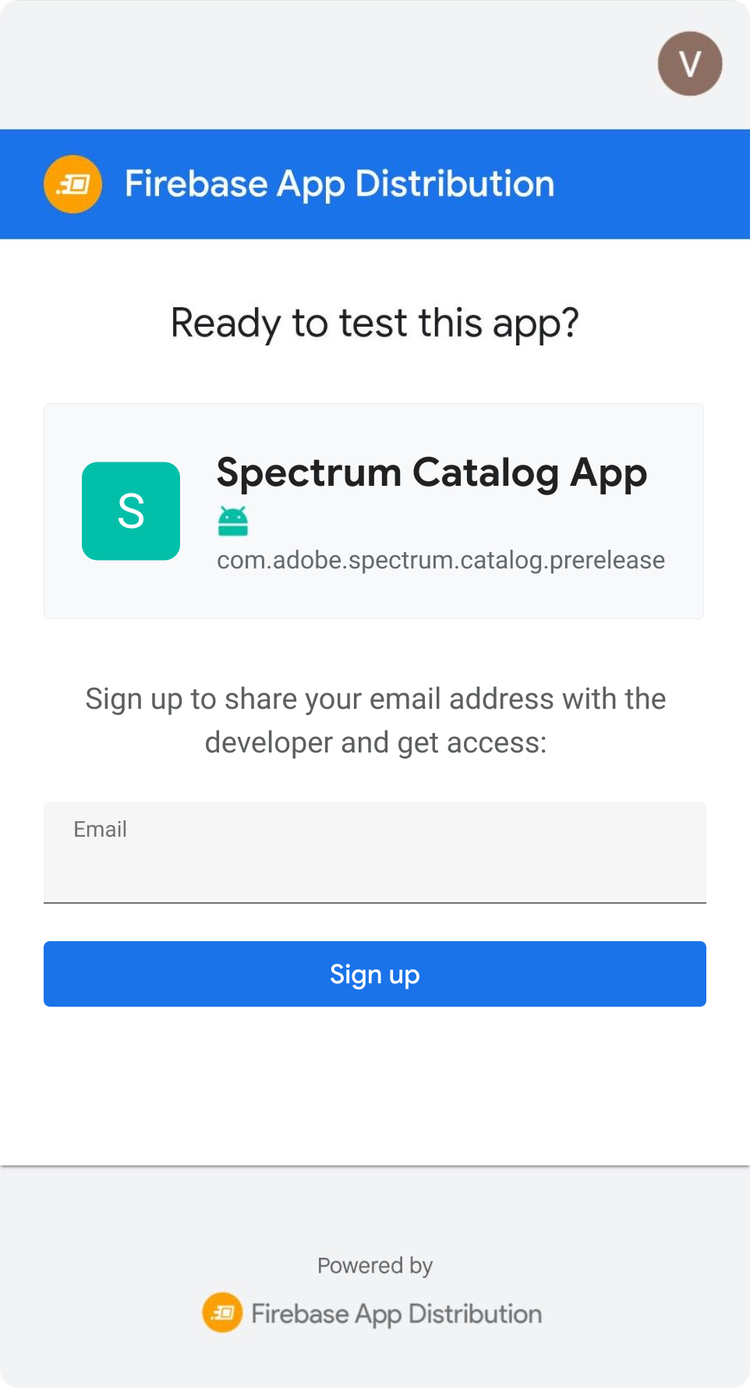
Enter your Adobe email address to get access (and/or notifications) to test builds.
Step 4: Install Firebase App Tester
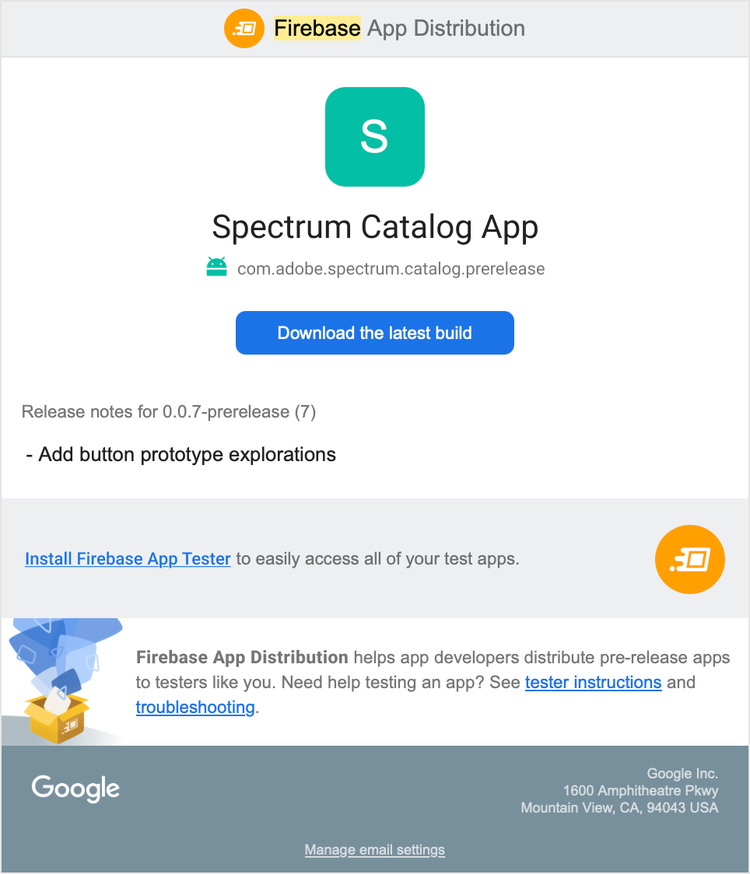
Look for an email from Firebase with the latest build. The subject line looks like: “Spectrum Catalog App 0.0.7-prerelease for Android is ready to test.”
Tap Install Firebase App Tester.
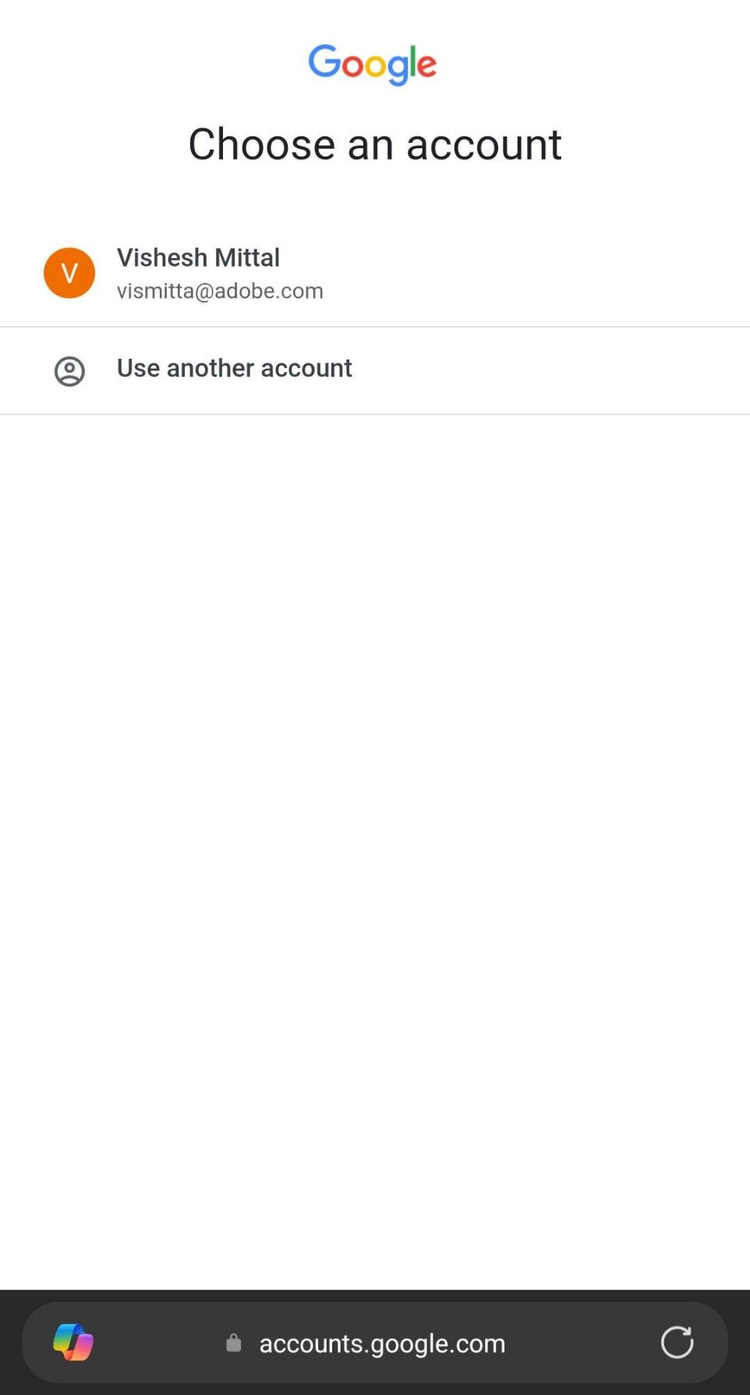
Sign in with your Adobe Google email that you registered for in Step 1.
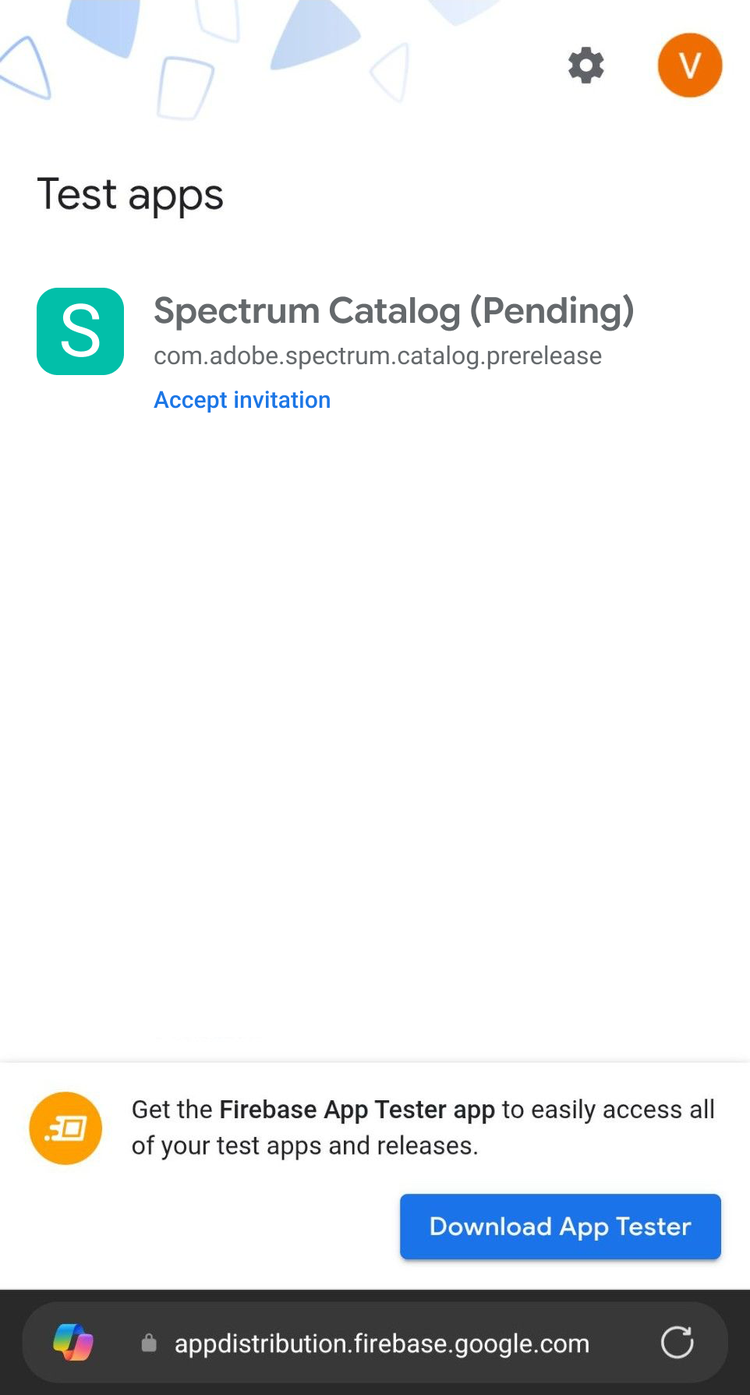
Step 5: Download App Tester
Tap Download App Tester, and then tap Install to install the app. Once the app is installed, tap Open.
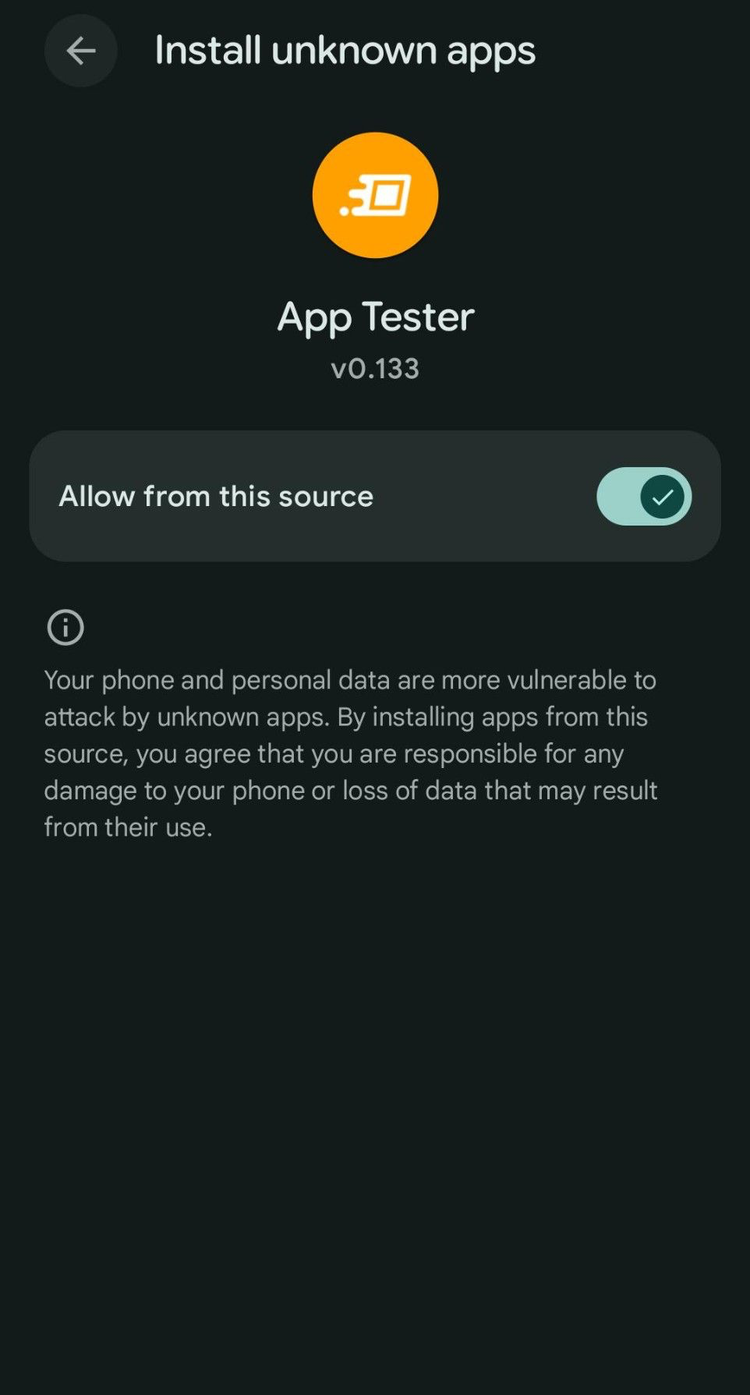
Step 6: Allow from this source
Turn on the Allow from this source switch.
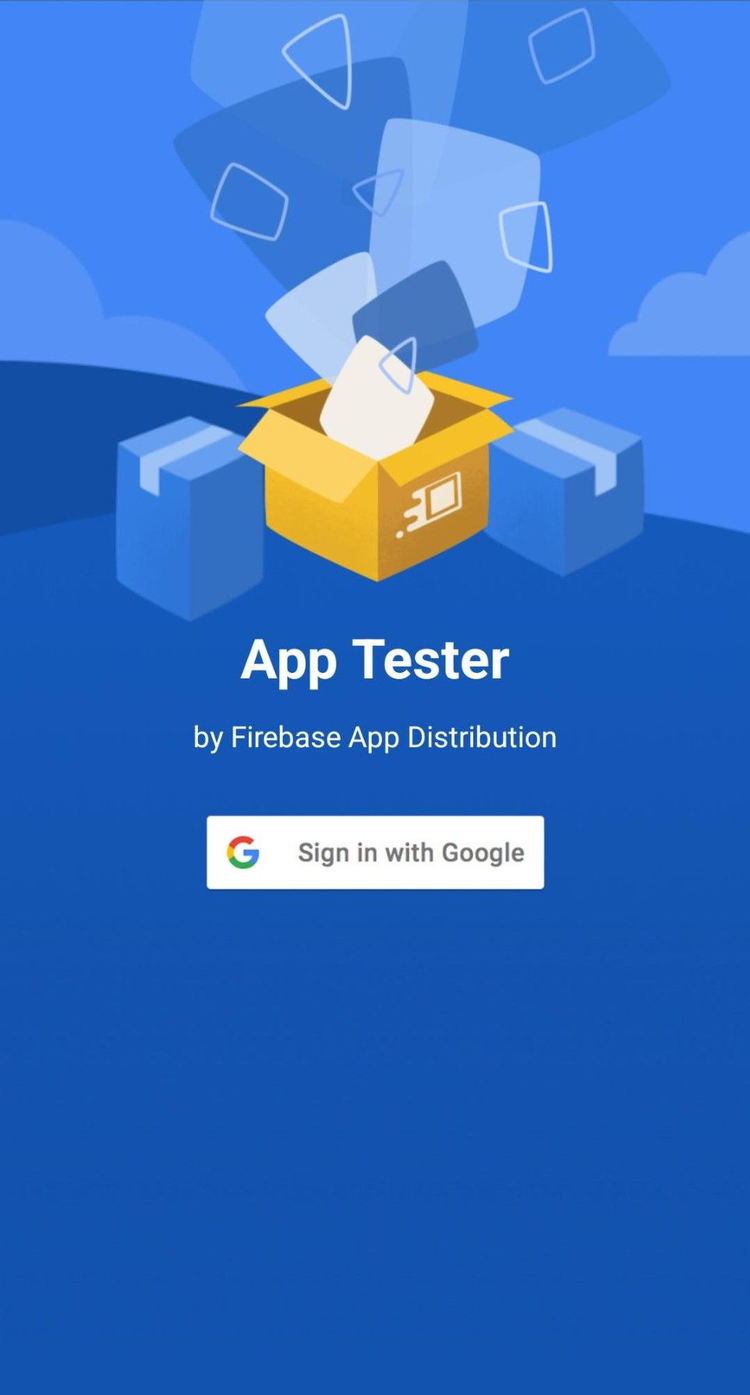
Step 7: Open the App Tester app
Open the App Tester app and tap Sign in with Google. Use your Adobe Google account credentials to sign in.
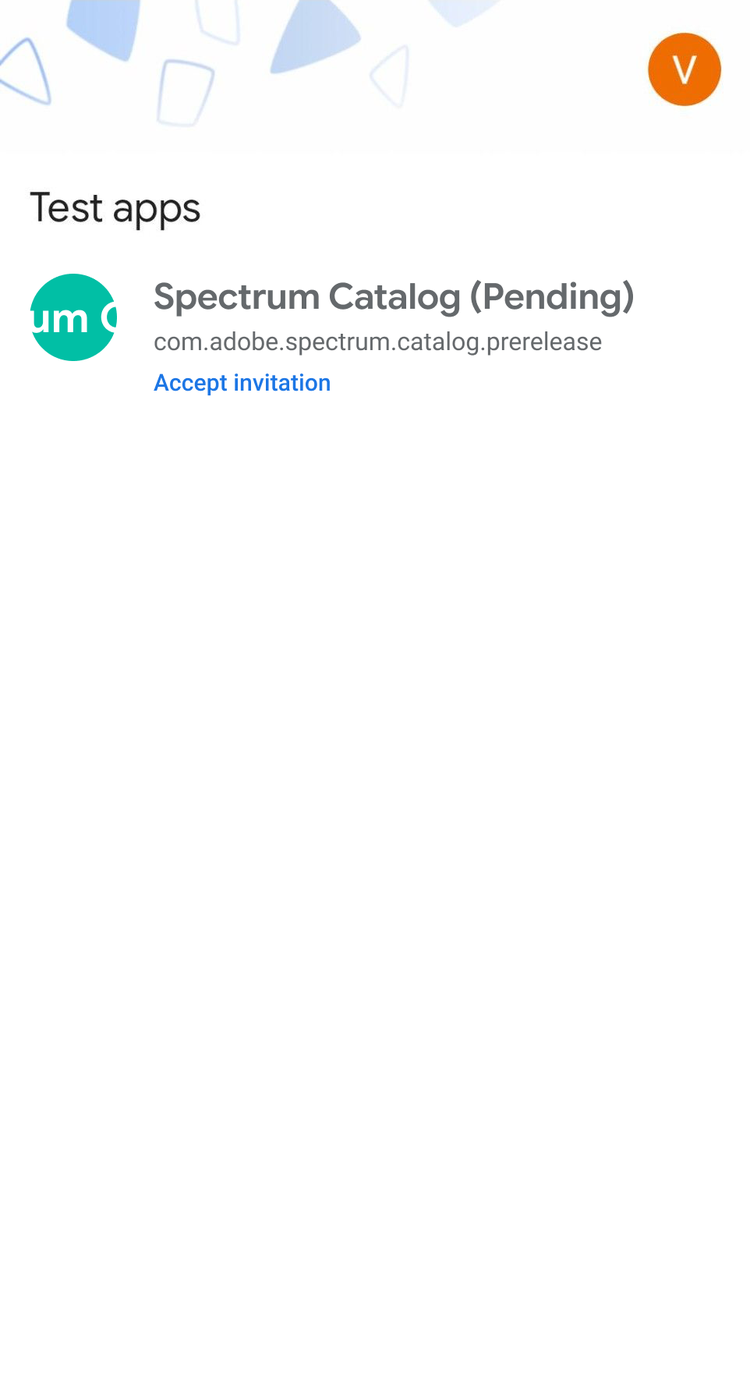
Step 8: Tap on the Spectrum Catalog app
After signing in, you will see a list of all the testing apps you have access to. Tap the Spectrum Catalog app in the app list.
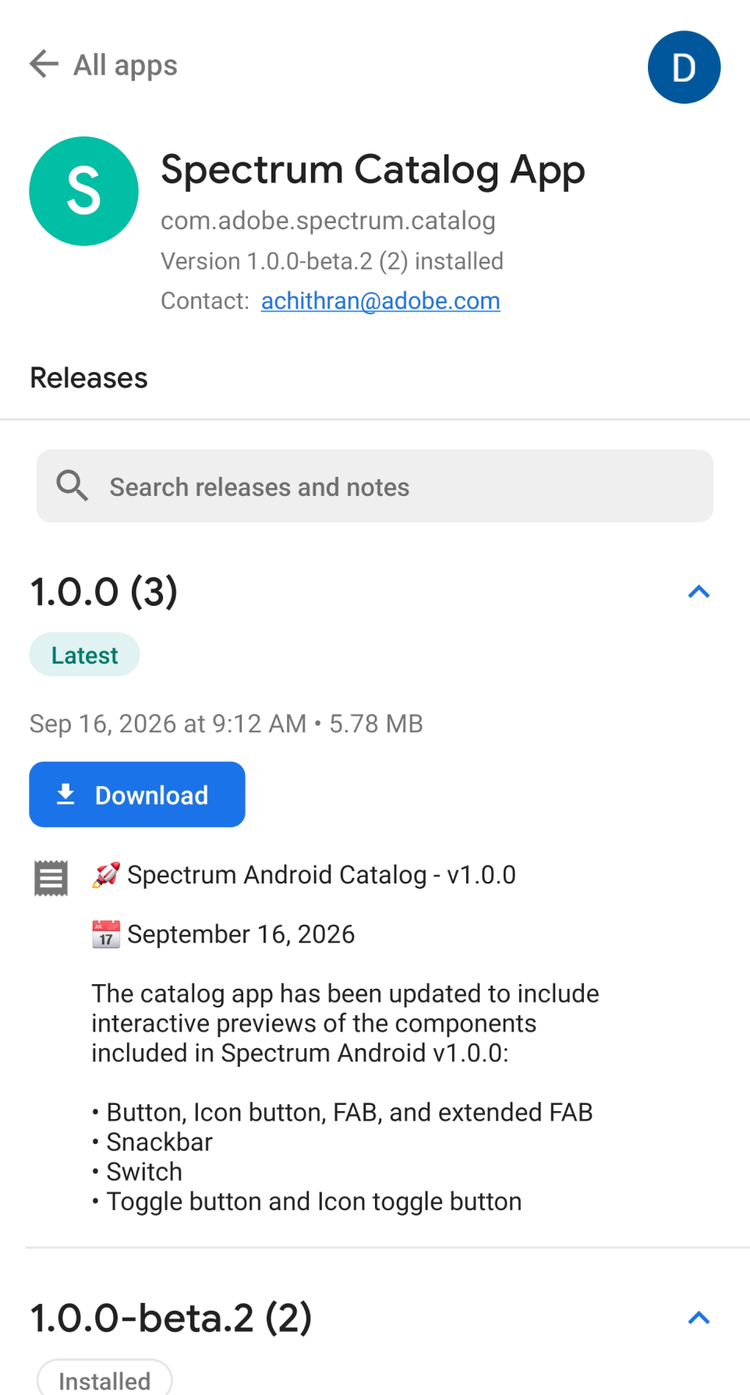
Step 9: Download the most recent release
Select the build number for the latest release, and tap Download to install the app on your device.
Accept the privacy notice, and then tap Start Testing on this Device.
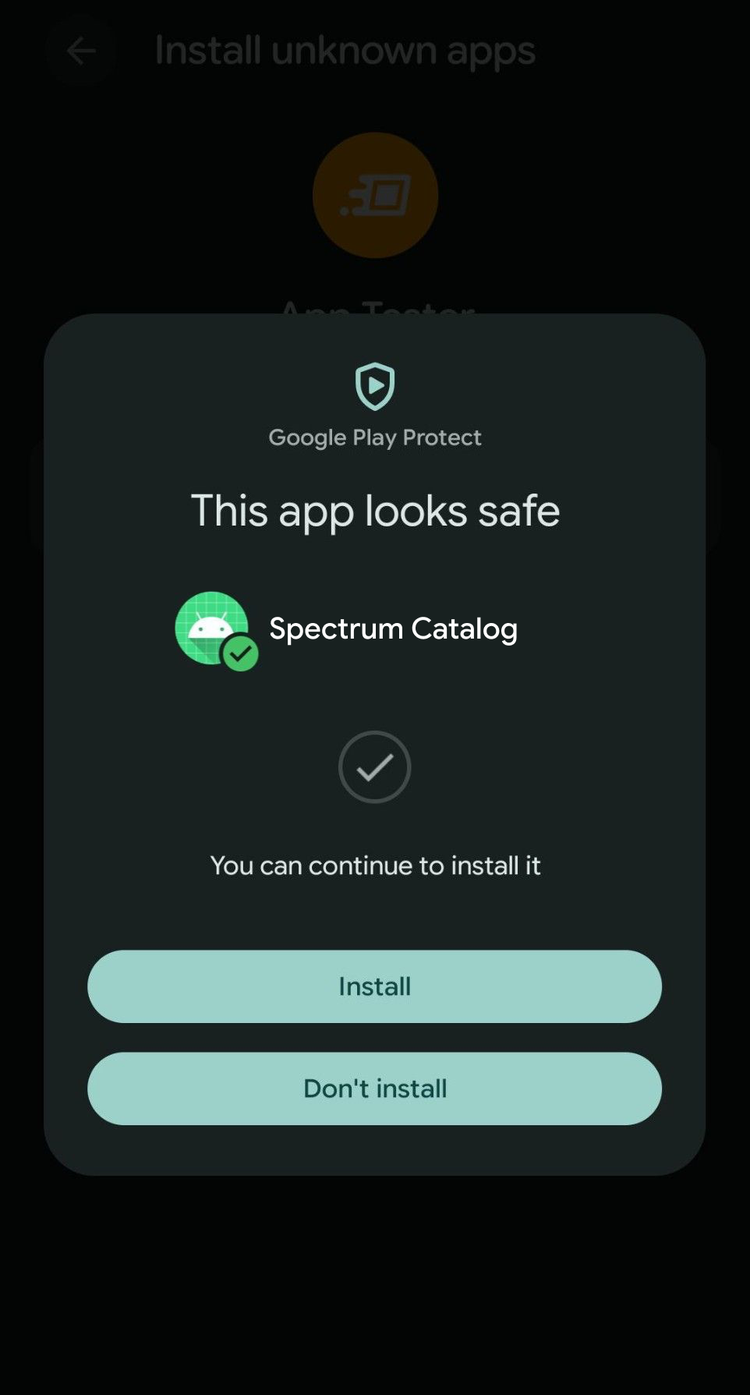
Step 10: Install the most recent release
After Google Play Protect scans the app, tap Install.
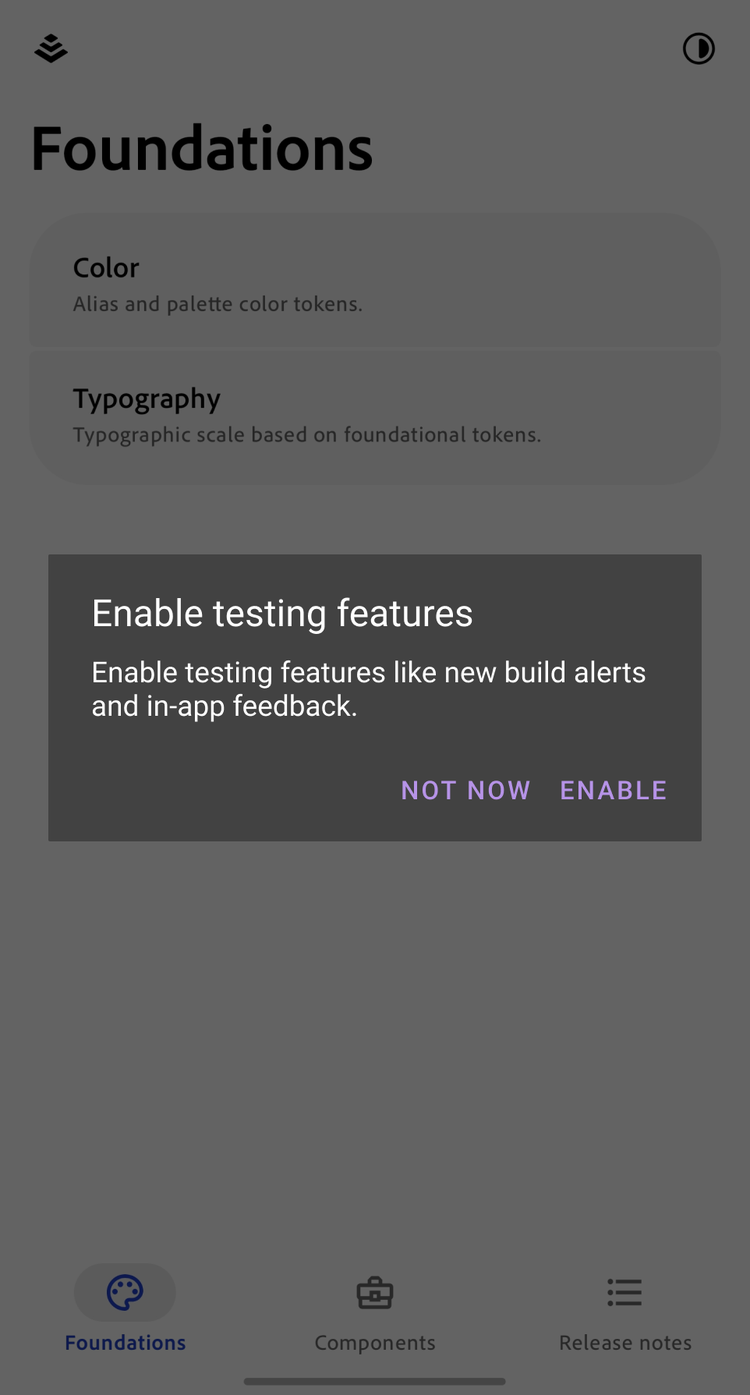
Step 11: Open the app
Open the app, and tap Enable in the Enable testing features prompt.
Frequently asked questions
Q1: I don't have access to a Google account — how do I get the builds?
The Firebase App Tester flow requires a Google account to authenticate (Adobe email via Google Workspace works). If neither is an option, we mirror the same builds to a SharePoint folder so you can install the APK directly without going through Firebase at all.
Scan the QR code, or open https://adobe-my.sharepoint.com/:f:/p/achithran/IgCjdY4JDEoJSrL6vRv5UJY5AfPOfAVKYbrdlJuXytDXmh8?e=SsbNvY to get started.
Scan and install from a personal profile.
Installing from SharePoint is blocked on Adobe's managed work profile, just like Firebase App Tester, so use a personal profile or phone.
You'll need Okta Verify configured on your personal profile.
The SharePoint folder is gated behind Adobe SSO, which requires an Okta Verify push to your phone to authenticate. If you don't have Okta Verify set up on your personal profile yet, follow Adobe's standard "Add a new device to Okta" flow first. Once you're in the folder, download the latest app-release.apk and install it the same way the Firebase install does (allow install from this source, then tap install).
The trade-off you're accepting on this path is that you won't get email notifications or in-app update prompts when a new build ships. You'll need to revisit the SharePoint folder manually whenever you want the latest version. Whenever possible, use the Firebase flow.
Q2: I installed App Tester, why don’t I see any builds?
This is almost always caused by one of two things:
Using the wrong Google account.
Sign out of App Tester (tap your avatar → Sign out), then sign back in with the email where you received the Firebase invitation. If you're not sure which email that is, check the inbox for the message titled “You've been invited to test Spectrum Android Catalog.”
The invitation has not processed.
New tester invitations can take a few minutes to propagate. If it's been longer than 30 minutes, ping the #spectrum-android Slack channel and we'll resend the invitation.
Q3: Chrome says “File might be harmful” or Play Protect says “App not installed”
Both warnings are expected when installing any APK outside the Play Store, including the App Tester itself and the Spectrum catalog. The APKs are signed by Google (App Tester) and Adobe (catalog), so they are safe to install.
- For the Chrome download warning: tap Download anyway.
- For Play Protect “App not installed” or “Blocked by Play Protect” messages, tap More details → Install anyway. You only need to do this once per app.
Q4: My install fails with INSTALL_FAILED_USER_RESTRICTED
That's the work-profile MDM block. Two options:
- Switch to a personal profile on the same device and run the install there.
- Use the SharePoint fallback in Q1 - same outcome, no Firebase dependency. You'll still need a personal profile for the final install step.
Q5: How often are new builds published?
Every merge to the component SDK main branch automatically ships a build. In a typical two-week sprint cycle there will be one build; during the bug bash it's likely to be more. After the first install you'll get an email and an in-app prompt for each one. There is no need to come back to this guide.
Q6: I found a bug — where do I report it?
Use the Slack channel #spectrum-android to report issues and the team will triage them.
iOS
TestFlight is Apple's platform for delivering pre-release iOS builds to a curated group of internal users. It's how Spectrum ships its iOS catalog app to the team. Every merge to main automatically publishes a new build, so you get the latest version a few minutes after a change lands.
To start receiving builds, complete this one-time setup: install the TestFlight app on your phone, then download the catalog app. After that, you don't need to return to this guide. The app updates automatically with each new build.
Scan the QR code, or open https://testflight.apple.com/join/XfEy4YFV on your phone to get started.
Step 1: View TestFlight in the App Store
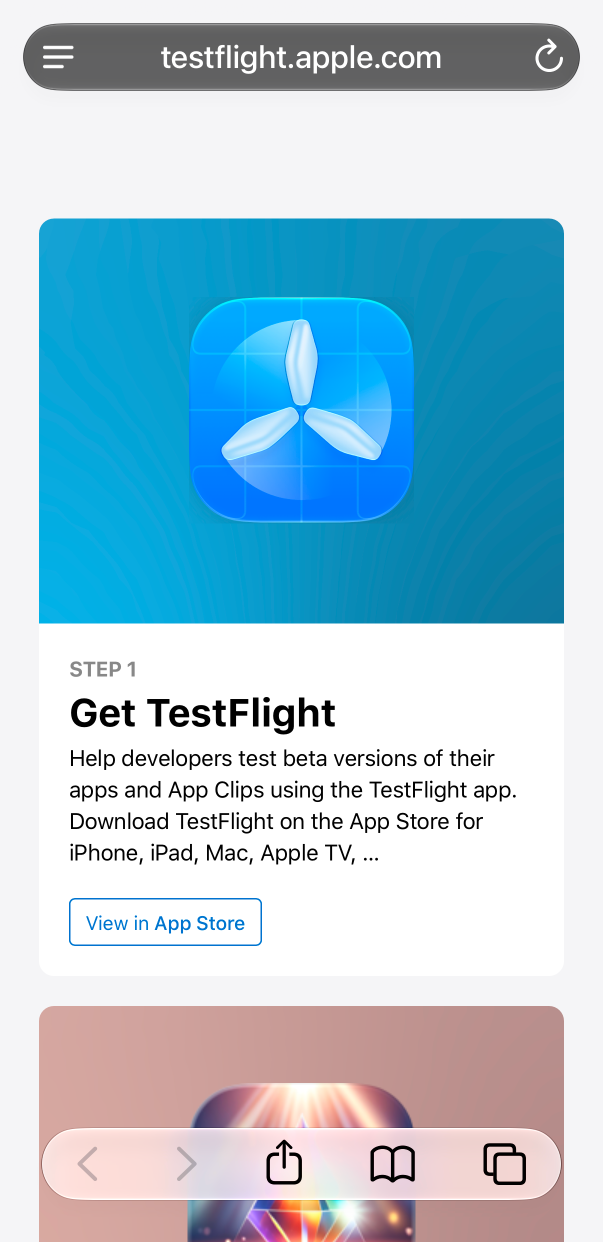
After scanning the QR code, you will be taken to a page that allows you to view the TestFlight app in the App Store. Tap View in App Store in the Get TestFlight card.
If you have already downloaded TestFlight, skip ahead to step 3.
Step 2: Download TestFlight
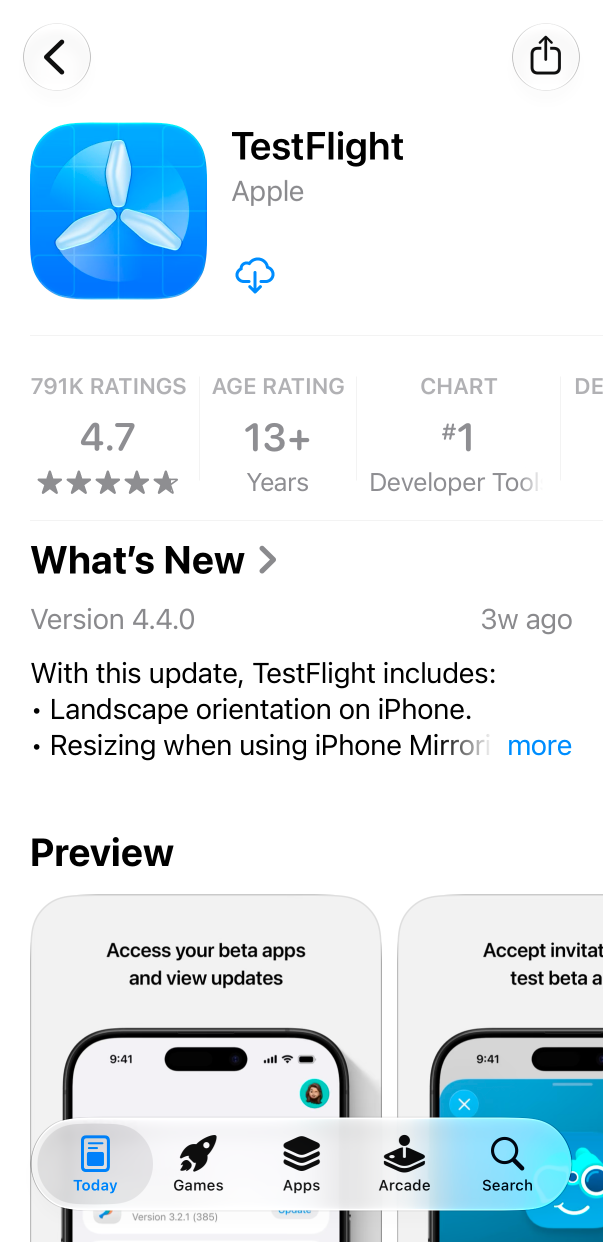
Tap the Download button to download TestFlight.
Step 3: Return to Safari
Return to the TestFlight page in Safari, and scroll down to the View Spectrum Catalog Beta card. Tap View in TestFlight.
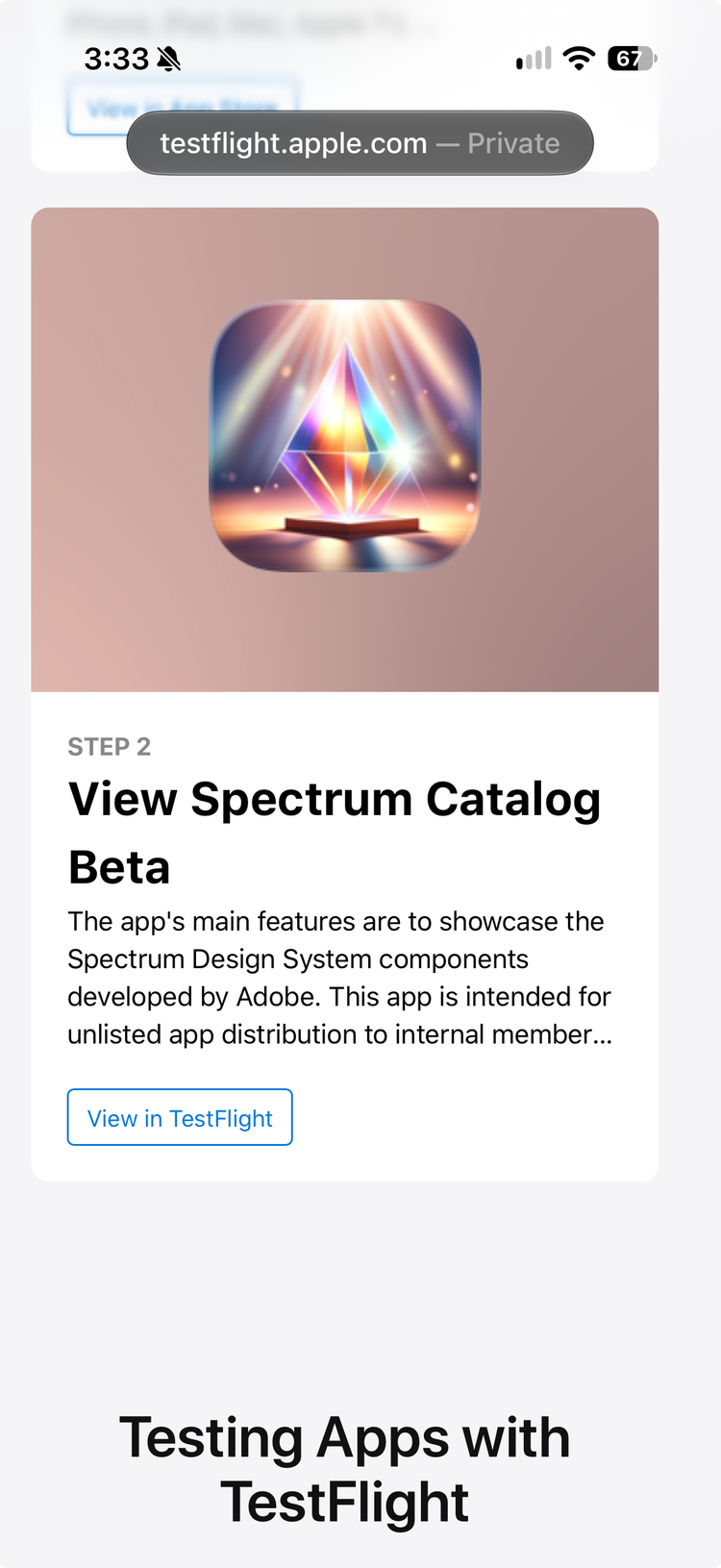
Step 4: View in TestFlight
The Spectrum Catalog app page will open in TestFlight. Tap the Install button.
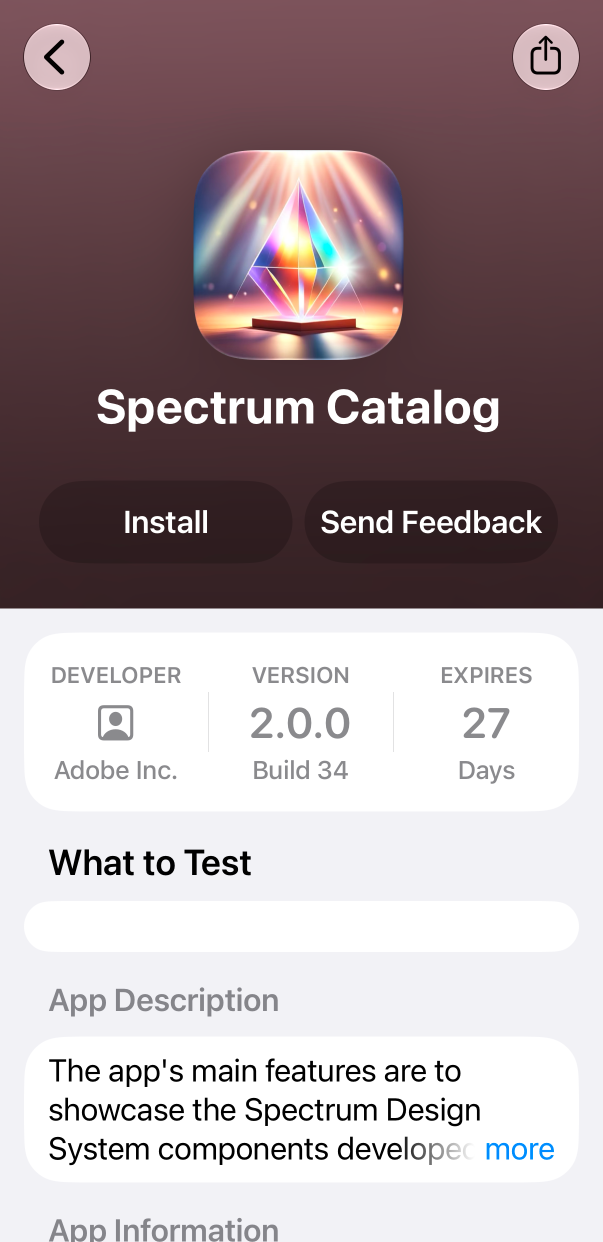
Step 5: Open the app
Once the app finishes downloading, tap the Open button.
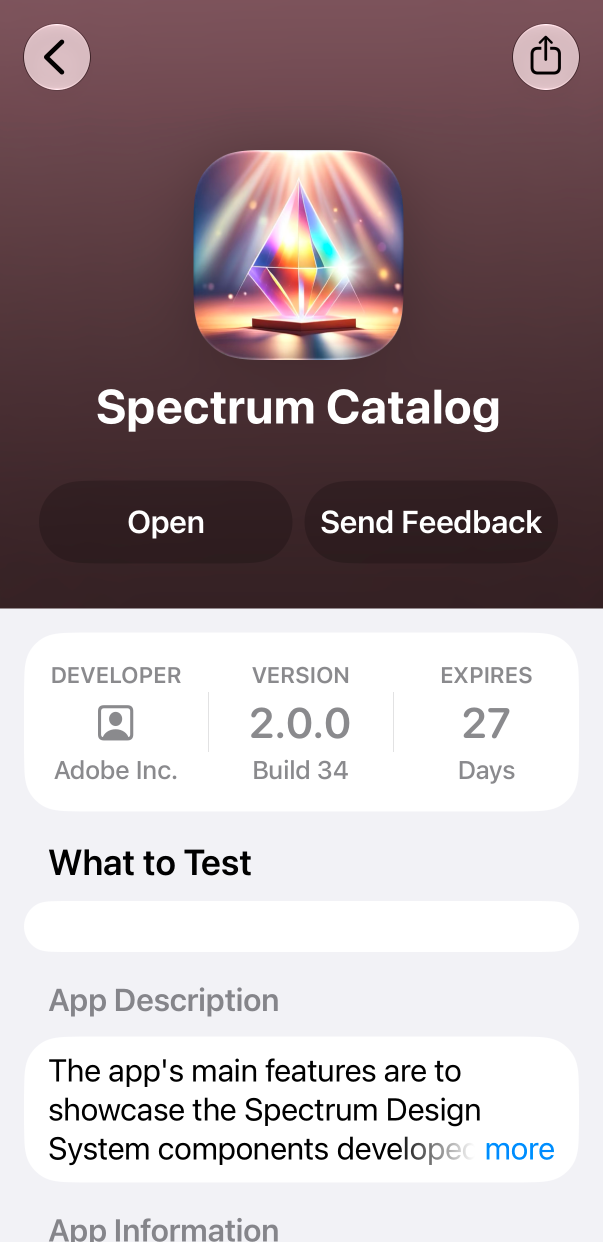
Step 6: Continue to the app
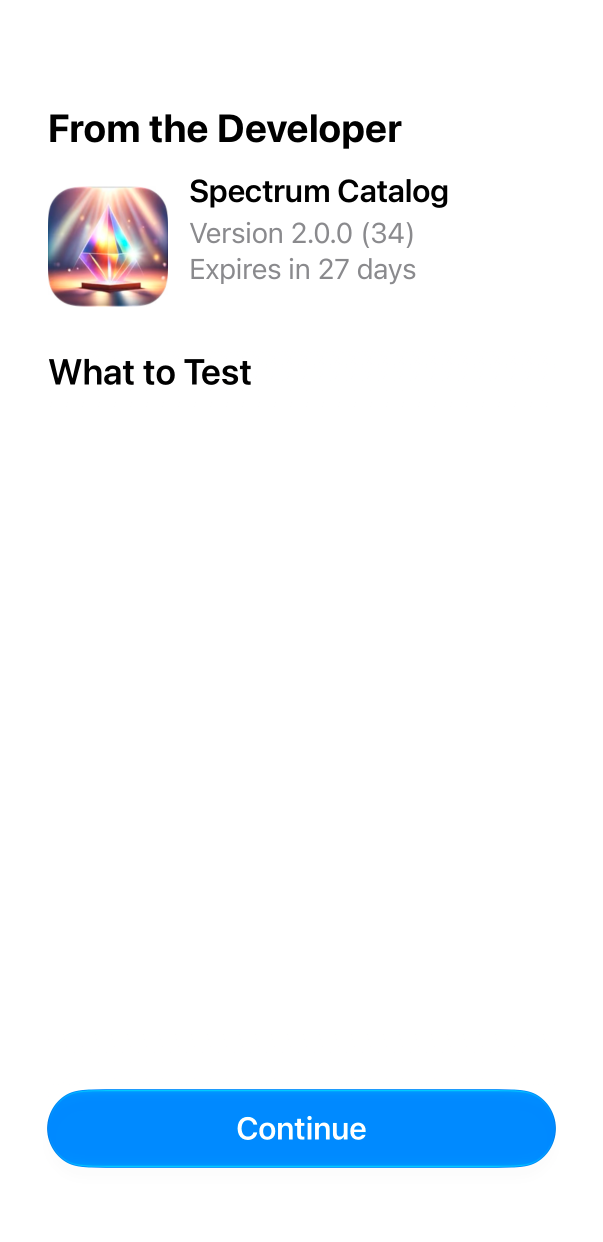
Tap Continue to open the app.